



Losing important footage from an SD card can be frustrating, whether it’s cherished vacation memories or professional project files. It might happen after an accidental deletion, an unexpected card error, or even a formatting mishap in the blink of an eye.
However, you can resolve this issue quickly by using a proper recovery approach. So, in this article, we have discussed several efficient methods to know how to recover deleted footage from an SD card.
Image alt: video footage recovery guide
Part 1. Understanding Footage Loss: Why SD Card Videos Go Missing
Normally, users lose their essential video files due to various reasons, including human error or card corruption issues. Furthermore, this error can sometimes occur due to a malware attack on your PC, which can delete essential files. However, when your SD card needs recovery, it typically shows several signs, as discussed below.

1. Error Message: Devices suddenly refuse to read the card, prompting a format request and displaying messages such as “SD card not detected.”
2. Damaged or Strange Files: In case the videos that were previously visible suddenly disappear, determine that your SD card needs immediate recovery.
3. Slow Performance: Your device starts working more slowly immediately, with transfers taking a long time and the camera freezing or showing a black screen.
4. Automatically Disconnected: While working on your PC, it disconnects automatically, causing the camera to reboot or crash during recording.
5. Write-Protected: The SD card becomes write-protected and refuses to accept new recordings, indicating an internal failure.
Part 2. 5 Top Ways to Recover SD Card Footage Quickly
To explore how to recover footage from an SD card, we have listed some efficient methods for you to choose easily:
Precautions Before Attempting SD Card Recovery
Before you dive into various methods for SD card recovery, first go through the necessary precautions that are required:
1. Stop Using the SD Card: If you notice missing or corrupted videos, stop recording, deleting, or copying anything to that card.
2. Avoid Formatting: You should initially stop formatting the card, rather than using other methods like inserting an SD card into another device.
3. Protect Card Physically: Users should handle the SD card gently and keep it in a dry, cool place while preparing for recovery.
4. Use Safe Recovery Method: One should opt for a safe recovery method by using a reliable tool like Recoverit, which provides maximum accuracy.
Method 1. Use Professional Recovery Tool – Recoverit
Suppose there is a freelance videographer who has just finished shooting a university event. However, after getting home, he found that the SD card had become corrupted and displayed a format message. Rather than panicking, we recommend using Wondershare Recoverit, which helps you recover your lost data in seconds.
This tool uses advanced AI algorithms to recover numerous file formats, including Videos, images, and PDFs. Furthermore, it lets you choose between Quick and Deep Scanning options for your data retrieval depending on your needs. The foremost part is that users can easily access this tool from any operating system, including Windows, Linux, and macOS.
Key Features
1. Media Devices Support: Recoverit is capable of recovering data from multiple media devices including Camera, Drones and Go Pro.
2. Preview and Batch Processing: This tool lets you process multiple files in a single run and preview the recovered output, ensuring accuracy.
3. Intuitive Workflow: Unlike other complex tools, it offers an intuitive interface that is easy for both beginners and professionals to use.
Detailed Expert Guide on How to Use Recoverit For SD Card Recovery
Upon hearing the extensive features of Recoverit, let’s explore its detailed guide to recover deleted footage from an SD card:
Step 1. Connect the SD Card to the Desired Device
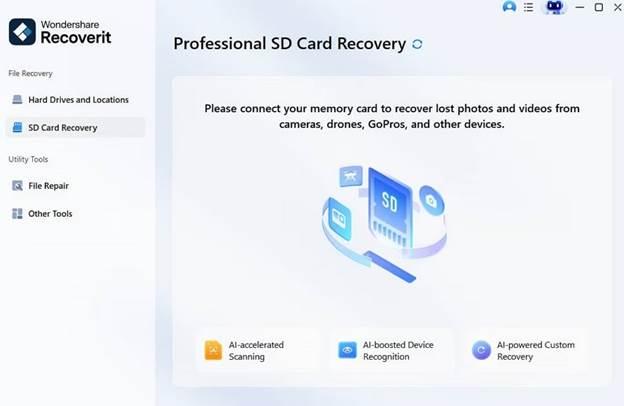
Start by connecting your SD card to the device you are using Recoverit on. Afterwards, access the tool and navigate into the “SD Card Recovery” section.
Step 2. Start the Scanning Procedure Instantly
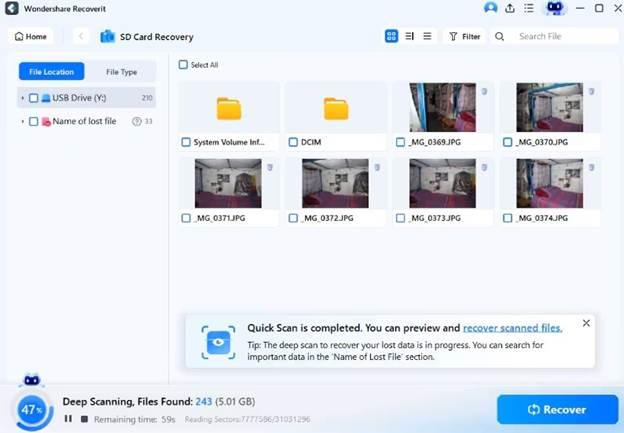
After choosing the location of lost files, choose the “Recover” button to initiate the recovery procedure instantly.
Step 3. Preview and Render the Recovered Results to the Folder
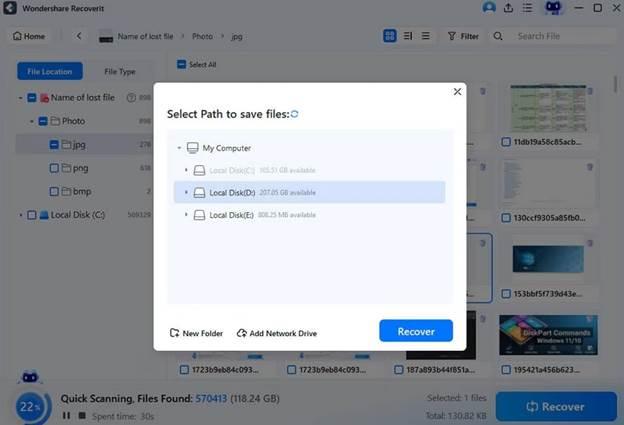
Once the lost files have been recovered, preview the outcome and select “Recover” to save the lost files to the device.
Method 2. Check Trash/Recently Deleted
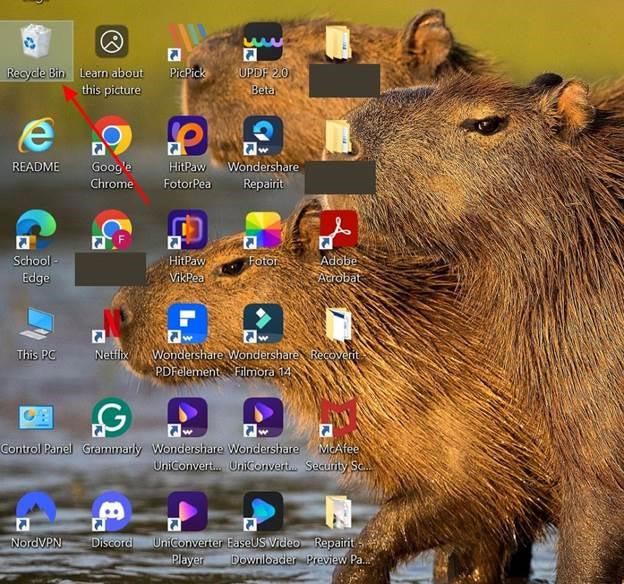
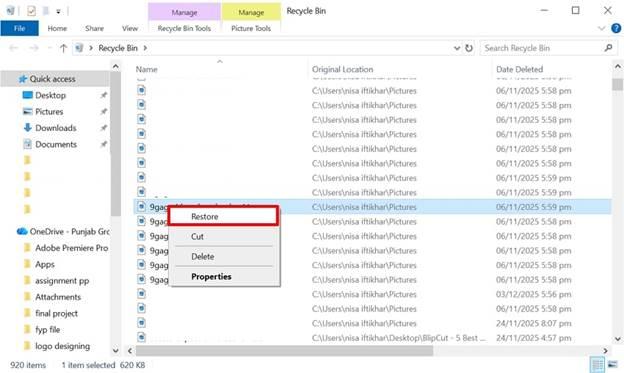
Once you realize data has been lost, first check the Recycle Bin on your PC for recently deleted files. This method is safe because it does not overwrite or alter the original data. As a built in feature of every operating system, it is completely free and requires no technical expertise. Below is a clear step by step guide explaining how to recover footage from an SD card effectively.
Step 1. Navigate into the “Recycle Bin” from the desktop to look for the deleted content.
Step 2. Navigate to the deleted file, right-click and go for the “Restore” option.
Method 3. Try the SD Card in Another Device or Reader
Sometimes the issue lies with the device port rather than the SD card itself, so try inserting the card into another compatible device. This helps determine whether the problem is with the SD card or the original reader. In many cases, simple detection errors like “not detected” or “no media” are resolved this way. It also saves time and avoids the need for complex recovery methods or specialized tools.
Method 4. Use Camera‑Specific Recovery Modes or Utilities
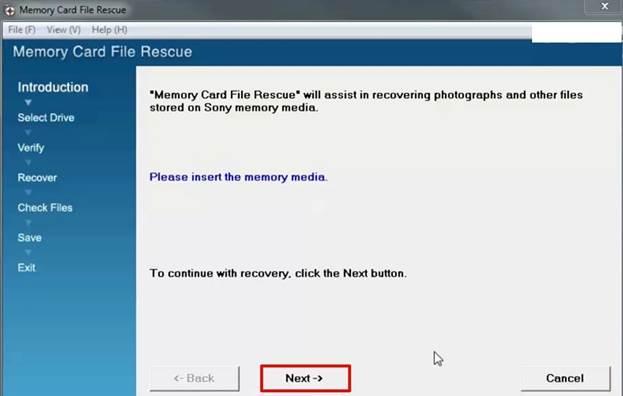
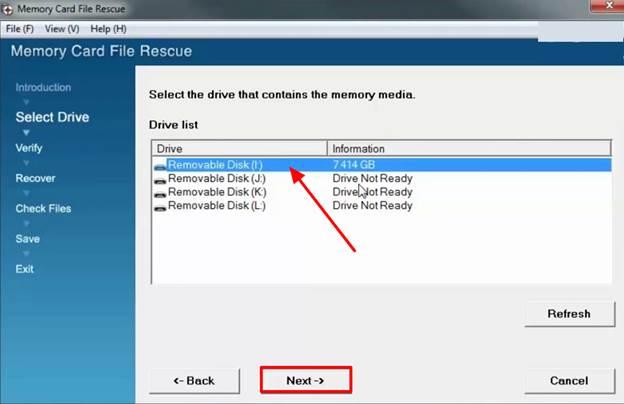
Users can choose Sony camera-specific recovery tools to quickly restore lost files directly from the camera. This built in feature is designed to recover data safely while fully following Sony’s official handling guidelines for memory cards. It reduces the risk of further issues and eliminates the need for any third party software. Follow the guide below to see how the recovery process works.
Step 1. Access the Sony Memory card file rescue tool and click on the “Next” button to jump to the next interface.
Step 2. Here, choose the desired drive from where you have lost your essential data and hit the “Next” button.
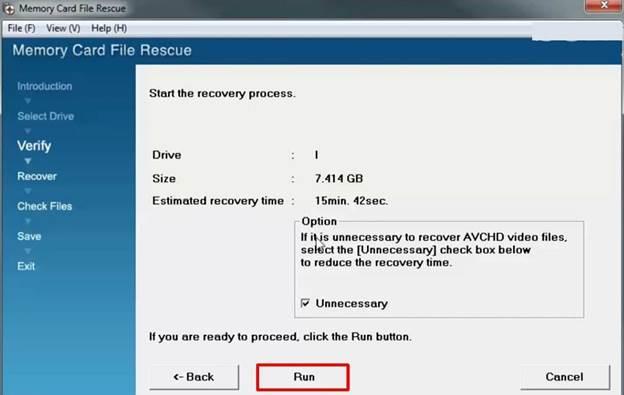
Step 3. Now, confirm the drive and choose the “Run” button in this interface.
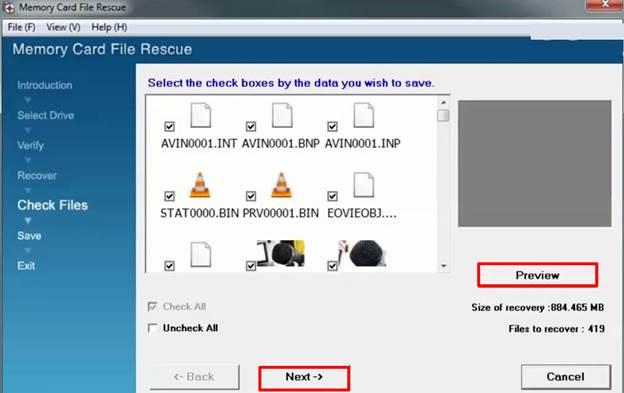
Step 4. Click on the “Preview” button to examine the accuracy of the recovered outcome and hit the “Next” button.
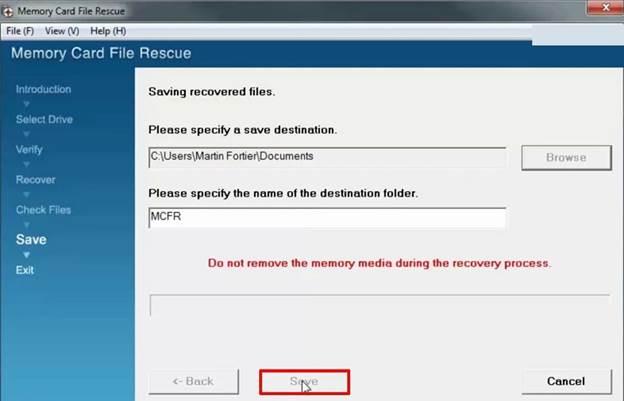
Step 5. As you have previewed the result, choose “Save” to export the outcome.
Method 5. Run File‑System Checks (chkdsk/fsck) on a Copy
If other DIY methods fail, using the command line interface can help fix structural issues that prevent your footage from appearing. Tools like chkdsk or fsck scan and repair file system errors to restore access to the data. This approach preserves the original file quality and avoids unnecessary damage. With these benefits in mind, follow the detailed guide below to recover deleted footage from an SD card:
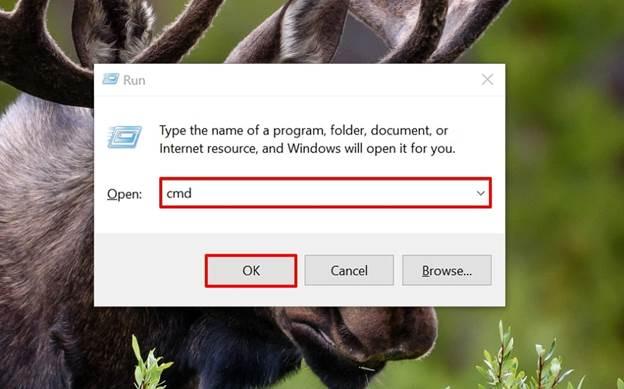
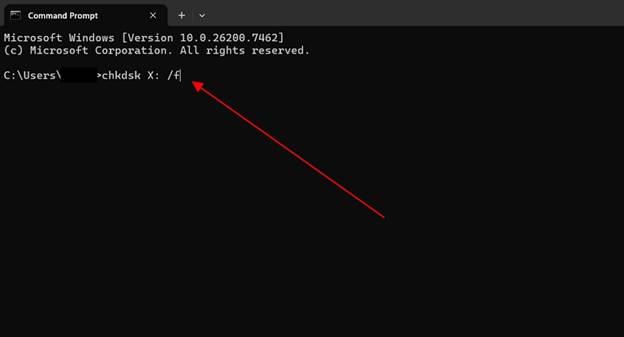
Step 1. Launch Run using “Windows + R” and type in the “cmd” command to launch “Command Prompt.”
Step 2. Next type the “chkdsk X: /f” command and hit the “Enter” button. Here, replace the “X” letter with the drive letter of the mounted image or video file. This process will take a while, and it will scan and restore required files to help access the directories again.
Part 3. Why Recoverit Is the Go-To Tool for Lost Video Recovery
Let’s explore why Recoverit tools excel over other tools to recover deleted footage from an SD card:
| Niches | Descriptions |
| Camera and SD Card Footage | Recovers deleted, formatted, or corrupted videos directly from SD cards, microSD, and camera storage. |
| Professional Video Production | Supports advanced scanning and recovery for pro formats such as MXF, MOV, MP4, and
RAW camera codecs. |
| Home Surveillance and Dashcam | Targets video loss from CCTV, NVR/DVR systems, dashcams, and body cams, including files. |
| General Desktop and Laptop Users | Restores videos deleted from internal drives, external HDD/SSD, USB sticks, and the Recycle Bin. |
| Deeply Corrupted or Fragmented Videos | Uses patented video reconstruction to repair unplayable MP4, MOV, MKV, AVI, and other formats. |
| Cross‑platform And Multi‑device Recovery | Works on Windows and macOS and supports recovery from 1M+ devices and 1000+ file types. |
| External Drives and USB Media | Restores video files from external HDDs, SSDs, USB flash drives, and memory cards after formatting. |
| Cloud And Virtual Environments | Supports recovery from some virtual disks and complex storage setups, making it useful. |
Conclusion
Concluding it, now people can easily recover their lost data by using efficient methods. To explore how to recover deleted footage from an SD card, it covers everything from basic signs of recovery to all methods. After examining all the methods, we recommend using Recoverit, which provides you with both Quick and Deep scanning modes depending on your needs.
0 Comments